Trade Copier and Portfolio: run several prop accounts
One parent, child accounts, a symbol list: the copier settings worth changing from day one, Client mode for OCO brackets, and the Portfolio to watch each account's day.
Three evaluations at the same firm, one strategy, one entry: without help that is three order tickets and three chances to fat-finger one of them. The Trade Copier in DeepChartsOFF removes the repetition. You trade a parent account, and every order is mirrored onto one or several child accounts in real time. The Portfolio window then shows each account's day symbol by symbol, so you always know where a given account stands against its daily limit.
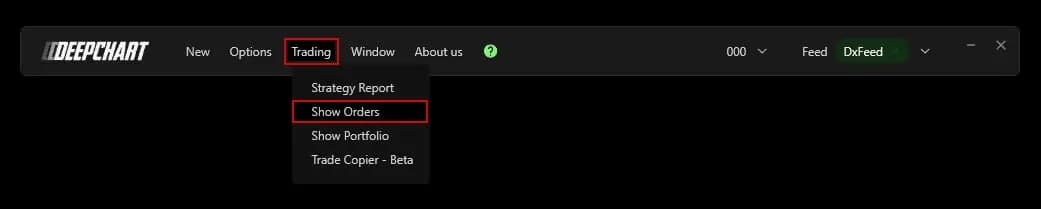
Both live in the Trading menu. The copier is still labeled Beta, which shapes how you should start with it: on a simulation account, with the settings the publisher itself recommends, and after reading what your firm allows.
What the Trade Copier does
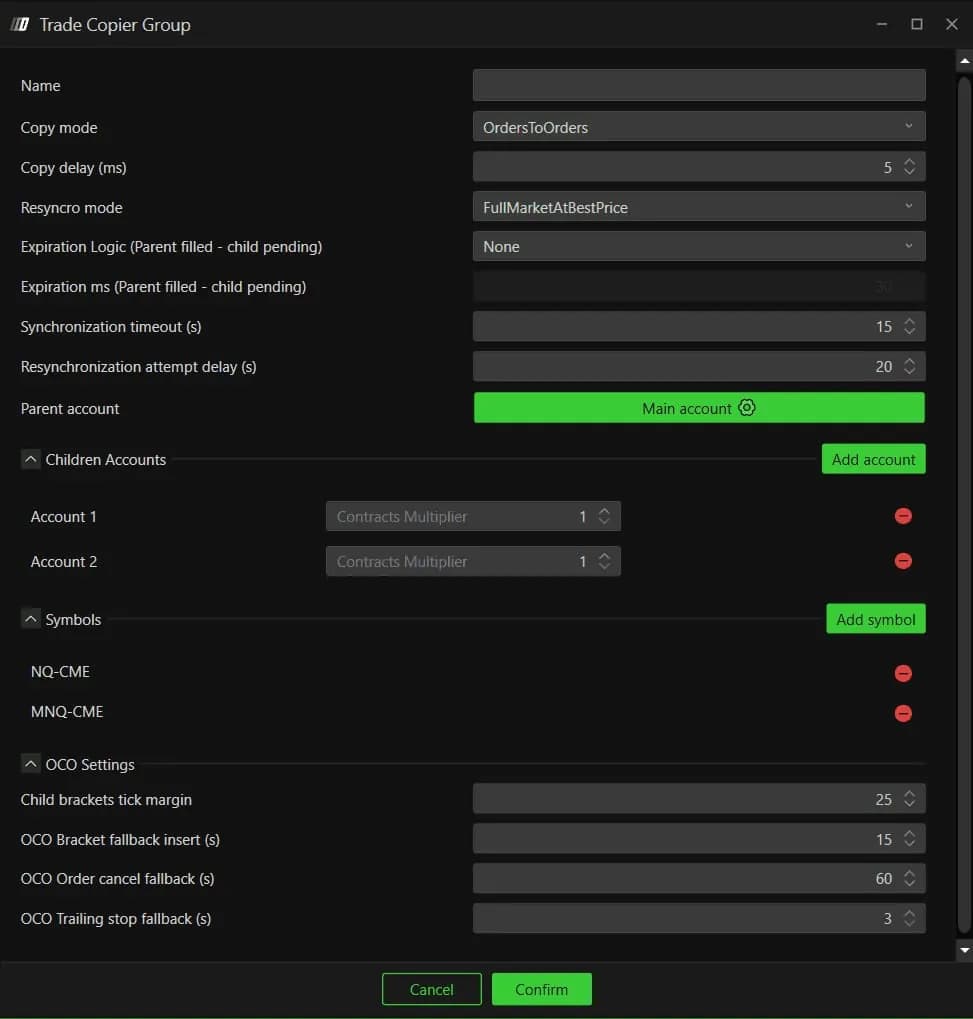
The Trade Copier replicates the orders of one parent account onto child accounts, inside groups you define. Open Trading, then Trade Copier - Beta, and click Add new group. A group is one parent, any number of children, a list of symbols and its own copy rules. You can run several groups at once, for instance one per prop firm when their contract limits differ.
Before anything else, every account must be connected in the platform. An account that is not connected shows Waiting Connection in the group and receives nothing. If your accounts are not wired in yet, start with connecting a prop firm account.
Copy mode: same order, or market after the fill
Copy mode decides how a parent order reaches the children, and it is the first choice that shapes your fills. OrdersToOrders, the default, copies the order as it is: a limit on the parent becomes a limit on each child. There is no slippage, but nothing guarantees every child fills. On NQ in a fast market, the parent's limit can be hit while a child's is still waiting one tick away.
OrdersToMarket waits for the parent to fill, then sends market orders to the children. The accounts always end up in the same position, at the price of possible slippage on the children. Scalpers who enter with limits usually prefer the first mode and accept the odd unfilled child; traders who enter at market lose little with the second.
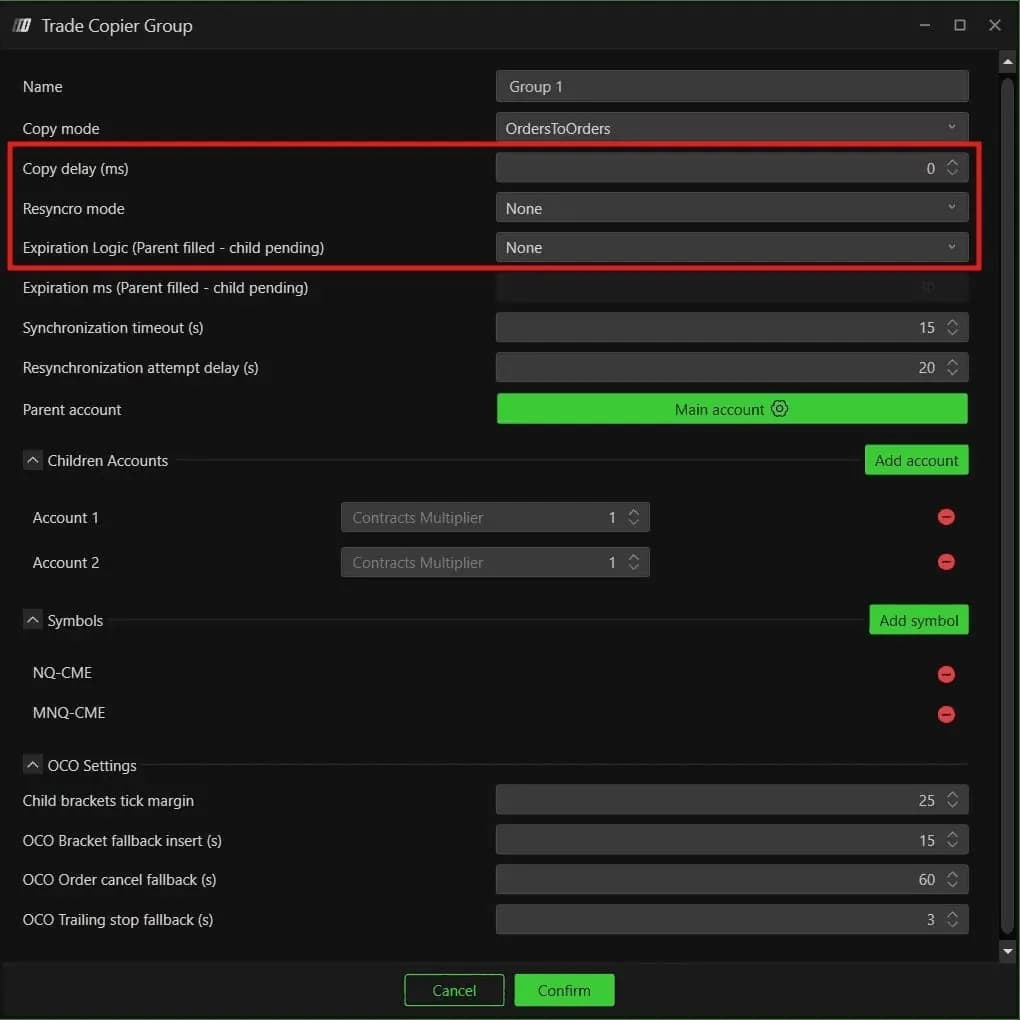
Copy delay adds a pause before replication. It ships at 5 ms, and the recommended value is 0 for the fastest copy.
Resync, expiration and the recommended starting point
The resync settings decide what the copier does on its own when a child drifts away from the parent. Resyncro mode set to FullMarketAtBestPrice, the default, sends whatever orders it takes to realign the child, volatile market or not. CloseOnlyAtBestPrice only trims a child's excess contracts. None leaves the fix to you, and it is the recommended baseline, so no market order fires by itself in the middle of a fast tape.
Expiration Logic handles the case where the parent filled and a child order is still pending. None leaves it; ToMarketAfterMs converts it to a market order and CancelAfterMs cancels it, after the delay set in Expiration ms. If you want automatic handling, the recommended choice is the cancel.
| Setting | Default | Recommended start | What it changes |
|---|---|---|---|
| Copy mode | OrdersToOrders | OrdersToOrders | Same order type on children, or market once the parent fills |
| Copy delay (ms) | 5 | 0 | Pause before an order is replicated |
| Resyncro mode | FullMarketAtBestPrice | None | Whether the copier sends orders itself to realign a child |
| Expiration Logic | None | None, or CancelAfterMs | What happens to a child order left pending after the parent fills |
| Synchronization timeout (s) | 15 | 15 | How long before two accounts count as out of sync |
| Resynchronization attempt delay (s) | 20 | 20 | Interval between two resync attempts |
Children, multipliers and the symbol list
Each child has a Contracts Multiplier, and the group only copies the symbols you list. At a multiplier of 2, one contract on the parent becomes two on the child. That doubles the risk on that account, which may have a tighter drawdown than the parent. Size each child from its own limits, the way you would size it by hand.
The Symbols section is the one to check first. Only symbols added with Add symbol are copied. If you switch between NQ and MNQ on the parent, list both NQ-CME and MNQ-CME. A missing symbol means the trade stays on the parent alone, with no warning.
Start, monitor, and take one account out
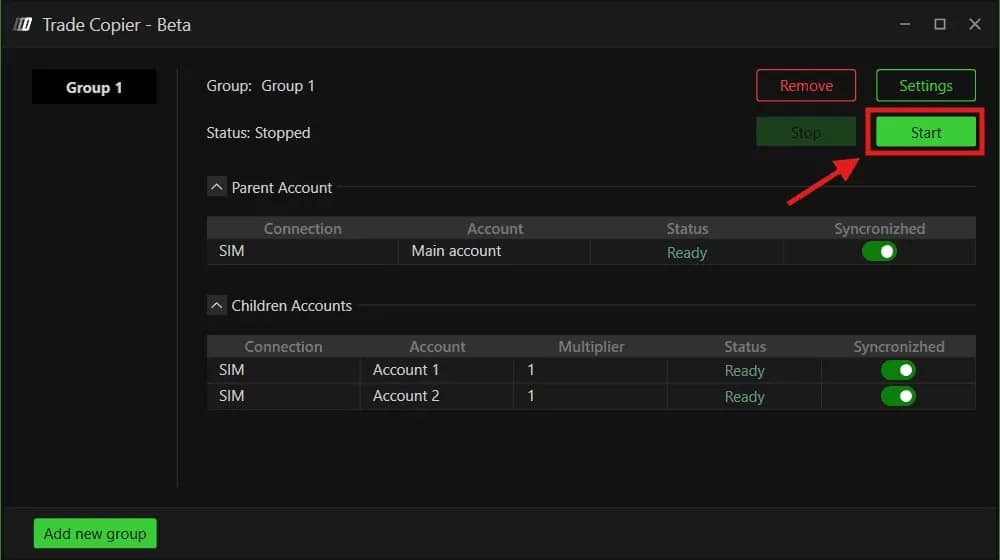
A group runs once every account reads Ready and you accept the disclaimer. The panel shows the group as Stopped, with a Parent Account table and a Children Accounts table listing connection, account, multiplier and status. Click Start. The disclaimer that follows is worth reading: it describes honestly what any copier can produce, delays, position gaps or different fill prices, and recommends watching positions in real time.
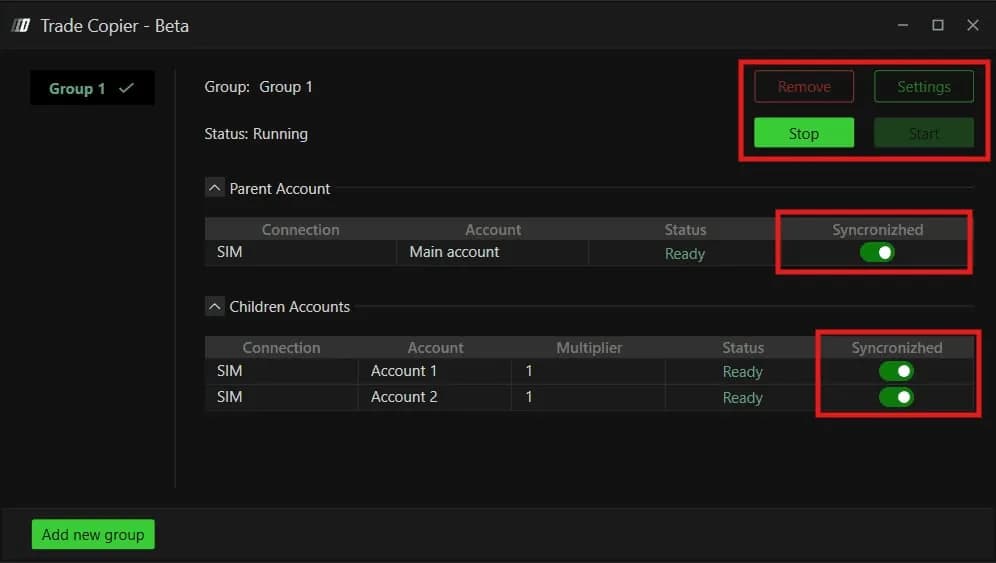
Once the group is Running, Stop pauses it, Settings reopens the configuration and Remove deletes it. The most useful control in prop firm practice is the per-account switch, spelled Syncronizhed on screen. It takes one account out of the copy without stopping the others. When one evaluation reaches its profit target or its daily limit, switch it off and keep trading the rest.
OCO brackets: switch to Client mode
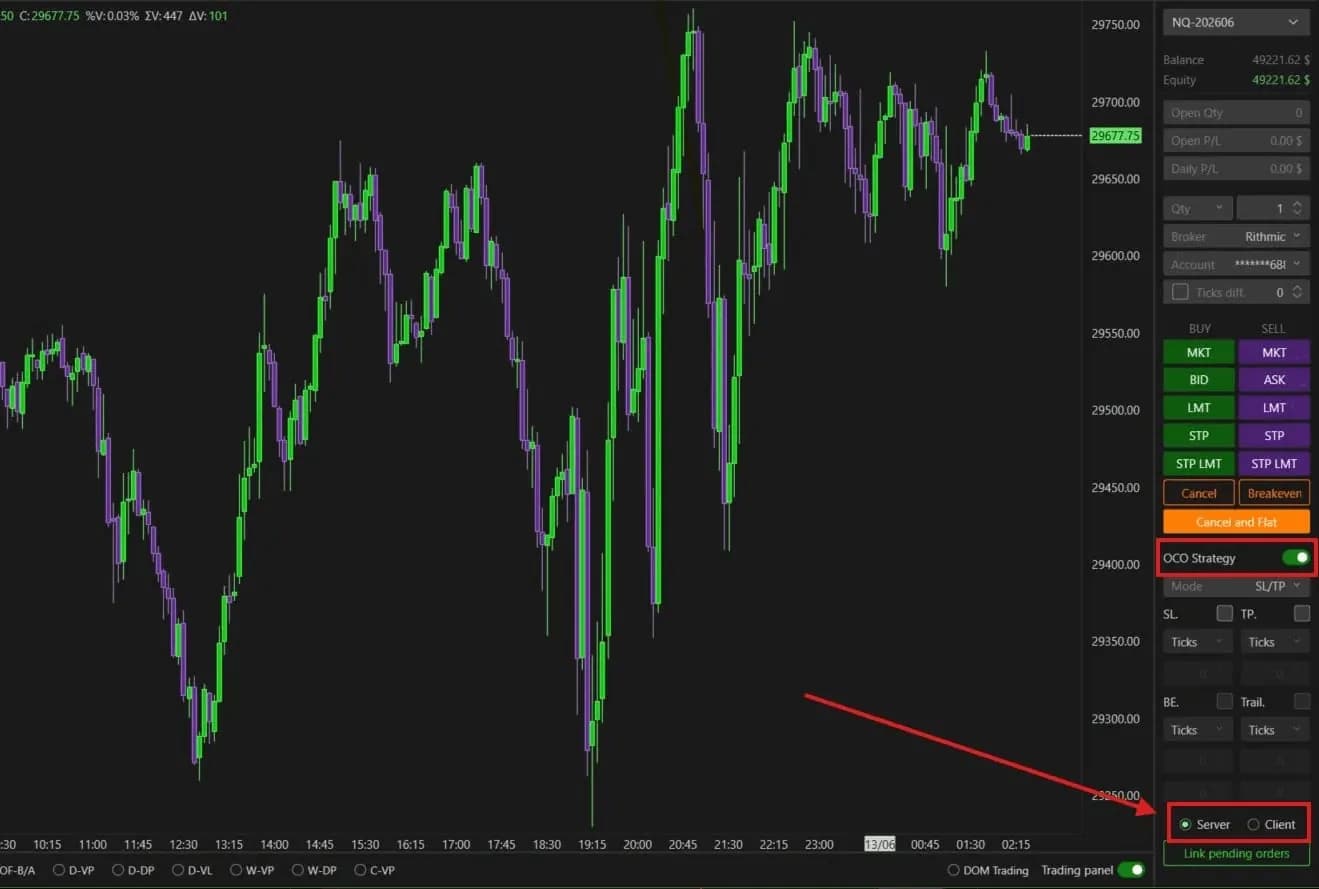
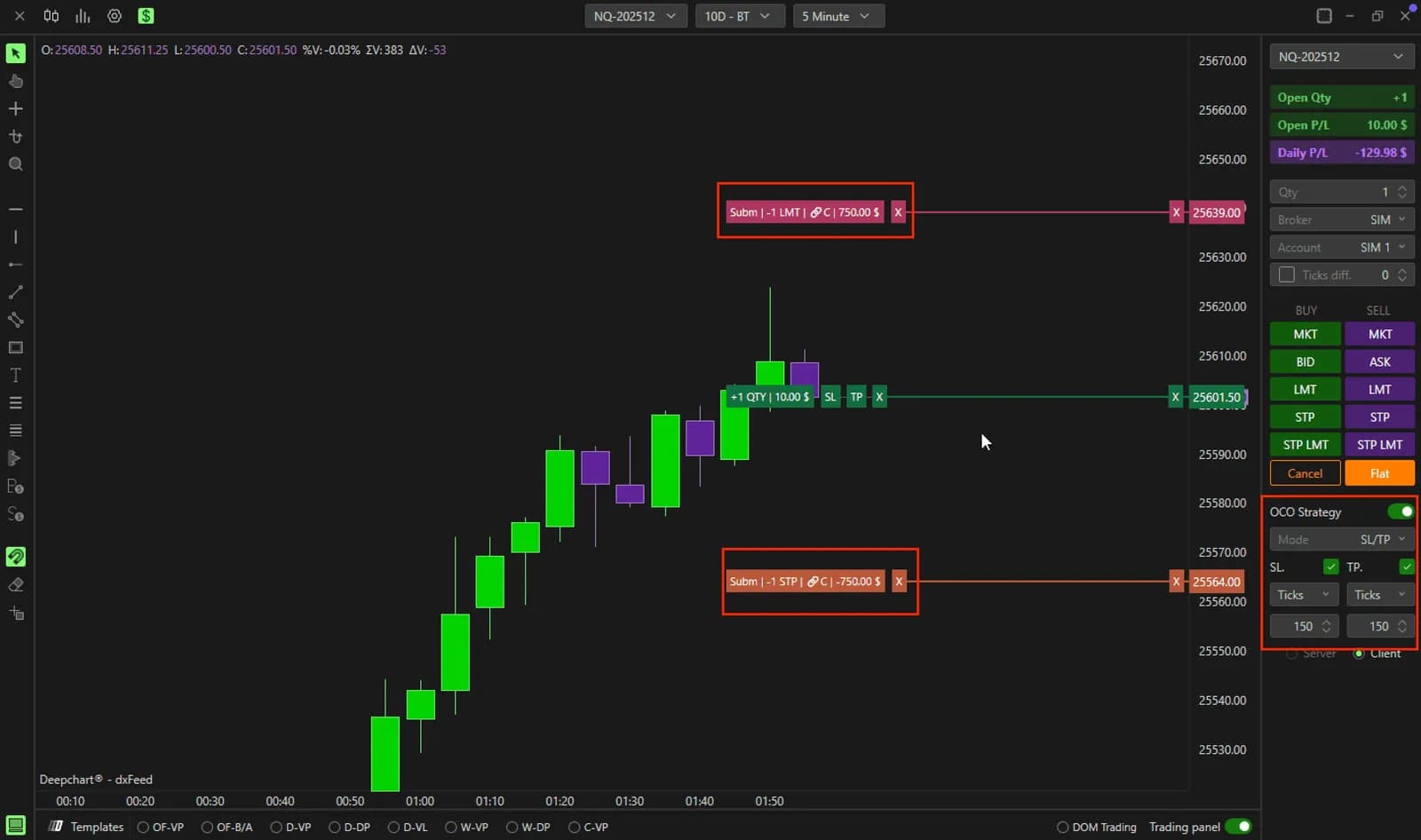
If your entries carry OCO brackets, set OCO Strategy to Client in the chart's trading panel. On Server, the default, the broker's server manages the brackets, and some brokers do not support that with the copier, so stops and targets replicate badly on the children. On Client, the platform manages them itself. The trade-off is simple: keep DeepChartsOFF open and connected for as long as a position is live. The bracket modes themselves are covered in trading from the chart with OCO orders.
The OCO Settings of the group fine-tune the rest. Child brackets tick margin, 25 by default, ties a child bracket to the parent's despite slightly different fills. The three fallbacks, 15, 60 and 3 seconds, insert a missing bracket, cancel a stop left behind after a target, and sync a trailing stop.
The Portfolio: each account's day at a glance
The Portfolio shows one account's result symbol by symbol, which is what you check between trades when several accounts are running. Open Trading, then Show Portfolio, and pick the account in the Account list, shown as Broker: account. Each row is a contract with its expiry. Daily PL is the day's result on that symbol, Open the running P/L, Quantity the contracts held and Price the price tied to the position. A row with zero Quantity and a Daily PL is a symbol you traded and closed today.
The window shows one account at a time. With a copier running, step through the children after each trade: a multiplier or a missed fill shows up here first. The trading panel next to the chart gives Open Qty, Open P/L and Daily P/L where you place orders, and the Portfolio adds the breakdown when you mix NQ and MNQ, or ES and NQ, in one session.
After the close, the order-by-order detail is in the Orders window and the review belongs to the Strategy Report.
Firms that run DeepCharts