How to connect a prop firm account to DeepCharts
Rithmic agreements in RTrader Pro, MBO or MBP on dxFeed, data or execution only on CQG, then Symbol Manage and DeepDom: the path from credentials to a live chart.
DeepChartsOFF is not a broker: it logs in to the data and execution feed your prop firm hands you, and your account trades through that feed. In practice that means one of three providers, Rithmic, dxFeed or CQG, and each has one step that decides whether the connection works on the first try. With Rithmic it happens outside the platform, in RTrader Pro. With dxFeed it is a single field, Dom Type. With CQG it is a question for your broker before you type anything.
The rest of the path is shared. You create the connection in Feed Settings, map the exchange in Symbol Manage, open a chart, then hook up DeepDomOFF on the same feed. If the platform is not installed yet, start with our installation and first-launch guide and come back here with your credentials.
Find out which feed your account runs on
The email your firm sends when you buy an evaluation or get funded tells you the feed, and it contains a username and password for that feed. Those credentials are separate from your prop firm portal login and from your DeepChartsOFF account: only the feed pair opens the connection. The firms below list the platform today, with the feed we recorded for each one, read from the live board at every rebuild.
- Cheapest account
- $69
- Split
- 90%
- Drawdown
- End of day
- Data feed
- dxFeed
- Code
- —

- Cheapest account
- $105
- Split
- 90%
- Drawdown
- End of day
- Code
- Link applies it

- Cheapest account
- $44
- Split
- 80%
- Drawdown
- Static
- Data feed
- dxFeed
- Code
- OFF
For the questions to ask before you pay, such as whether the platform is allowed during the evaluation or only once funded, see which prop firms accept the platform.
Rithmic: sign the agreements in RTrader Pro first
A Rithmic account connects only after you have accepted Rithmic's agreements once in RTrader Pro. Until then, the connection fails or stays "not authorized" even with perfect credentials, because Rithmic will not let a third-party platform open data or order routing before those signatures exist.
Install RTrader Pro from your firm's link and log in with the Rithmic credentials. Under System, pick your firm's name; if it is not listed, pick Rithmic Paper Trading. Bulenox accounts are the one exception: they go through Rithmic Paper Trading, not the Bulenox entry. For Gateway, choose the nearest one or Chicago Area.
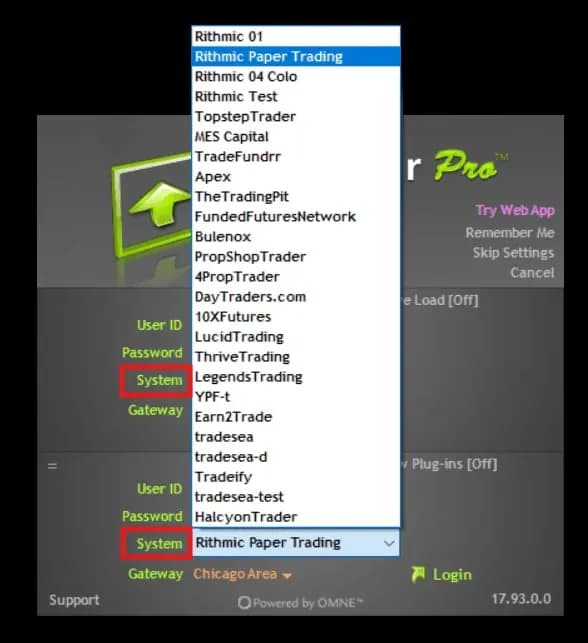
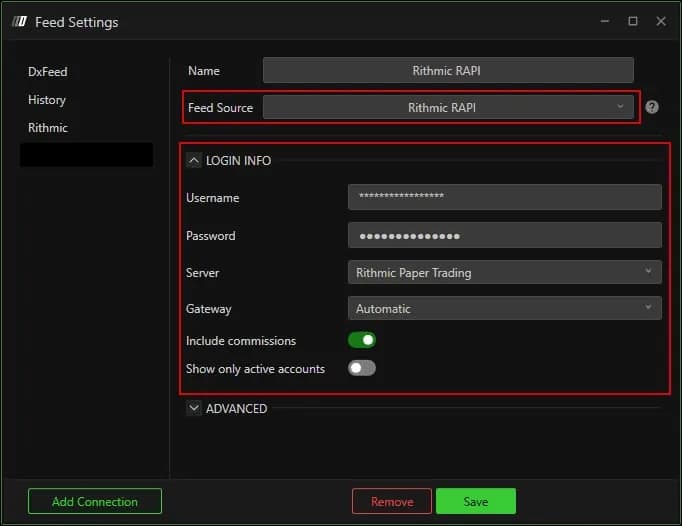
When asked for your market data status, an individual trading their own account is Non-Professional, which also carries lower exchange fees. Accept every window until the main interface appears, then close RTrader Pro: the signatures live on Rithmic's servers. In DeepChartsOFF, go to Feed Settings, Add Connection, Feed Source Rithmic RAPI, and enter the same credentials with the same Server rule as in RTrader Pro. Gateway on Automatic lets the platform pick the closest one.
dxFeed: measure your line, then choose MBO or MBP
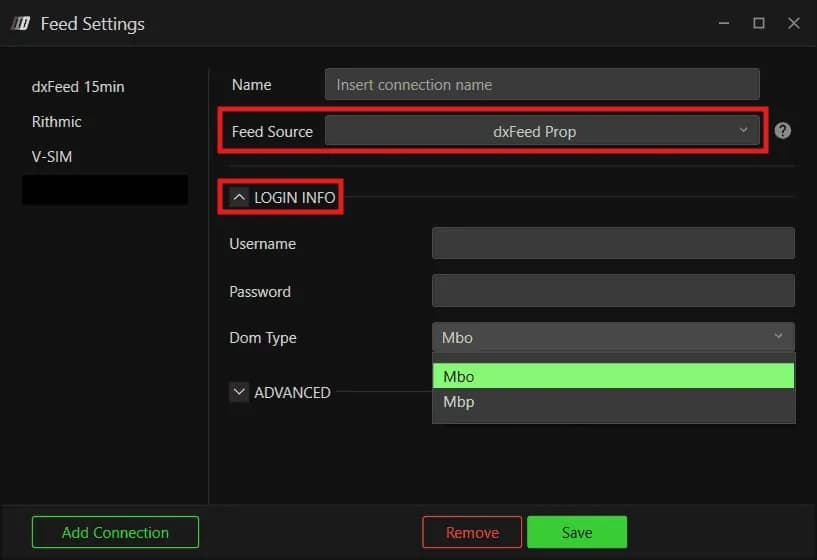
A dxFeed account connects through the dxFeed Prop source, and the choice that matters is Dom Type: Mbo for the order-by-order book, Mbp for depth aggregated by price. MBO is the finest data available and also the heaviest, especially on NQ at the US open, which is why you test your line before choosing.
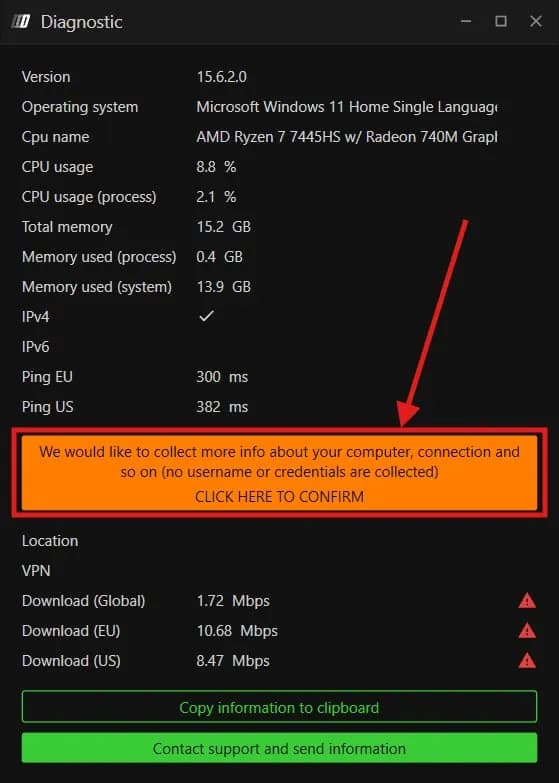
The test takes two minutes. Click the question mark icon in the toolbar, Contact Support, then "I have a problem or delay with the platform". The Diagnostic window shows your ping to Europe and the US, and Click here to confirm runs the download speed test. No credentials are read along the way. A fast, stable line goes to MBO; red triangles next to the speeds point to MBP.
Then Feed Settings, Add Connection, Feed Source dxFeed Prop, not one of the other dxFeed entries in the list, and the username and password from your firm. If the book lags on MBO once you trade, switch Dom Type to Mbp and reconnect. Why order-by-order data changes what a book can tell you is covered in reading the liquidity heatmap.
CQG: check whether it carries market data
A CQG connection is set up the same way whatever it covers, but your charts only fill if your CQG access includes a market data feed. Some brokers deliver CQG as full data, others as an execution route only. Ask in writing before you start.
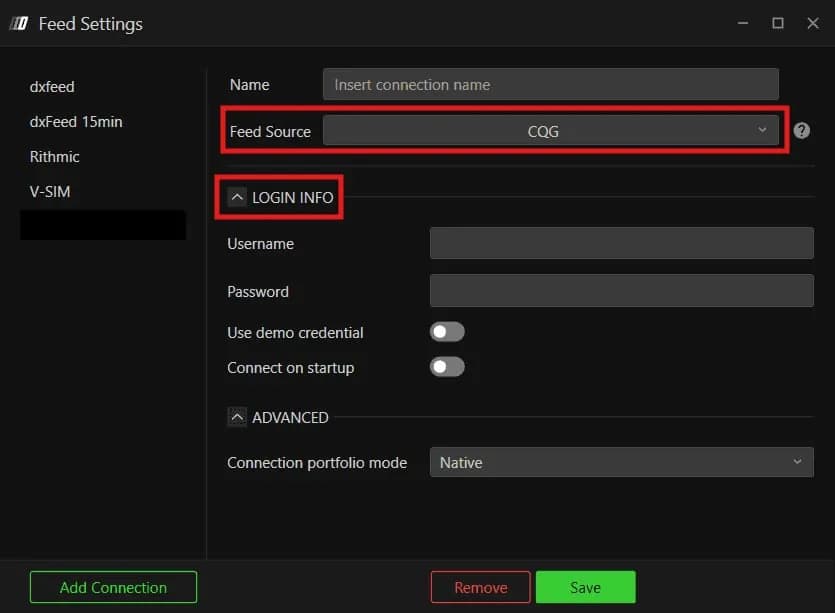
In Feed Settings, choose CQG as Feed Source, give the connection a clear name and enter the CQG username and password. Use demo credential stays off unless the credentials belong to a CQG demo account, and Connect on startup reconnects automatically at every launch. If your CQG is execution only, it still routes your orders, while the charts keep running on a dxFeed or Rithmic feed.
Map the exchange and open a chart
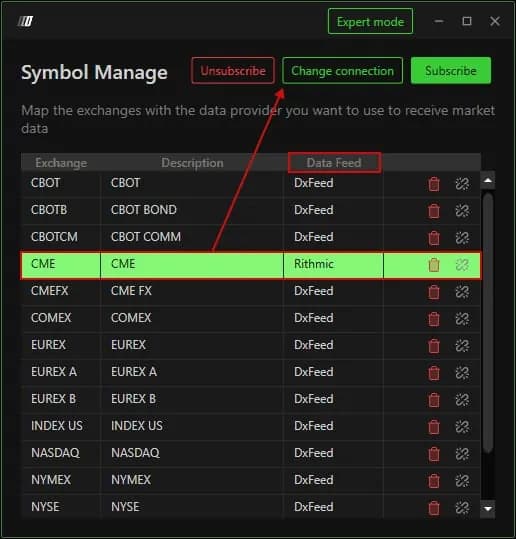
A green dot in the Feed menu means the connection is up, not that your charts read from it: the exchange has to point to that connection in Symbol Manage. Open Options, Symbol Manage, find CME, which covers ES, NQ, MES and MNQ, and check the Data Feed column.
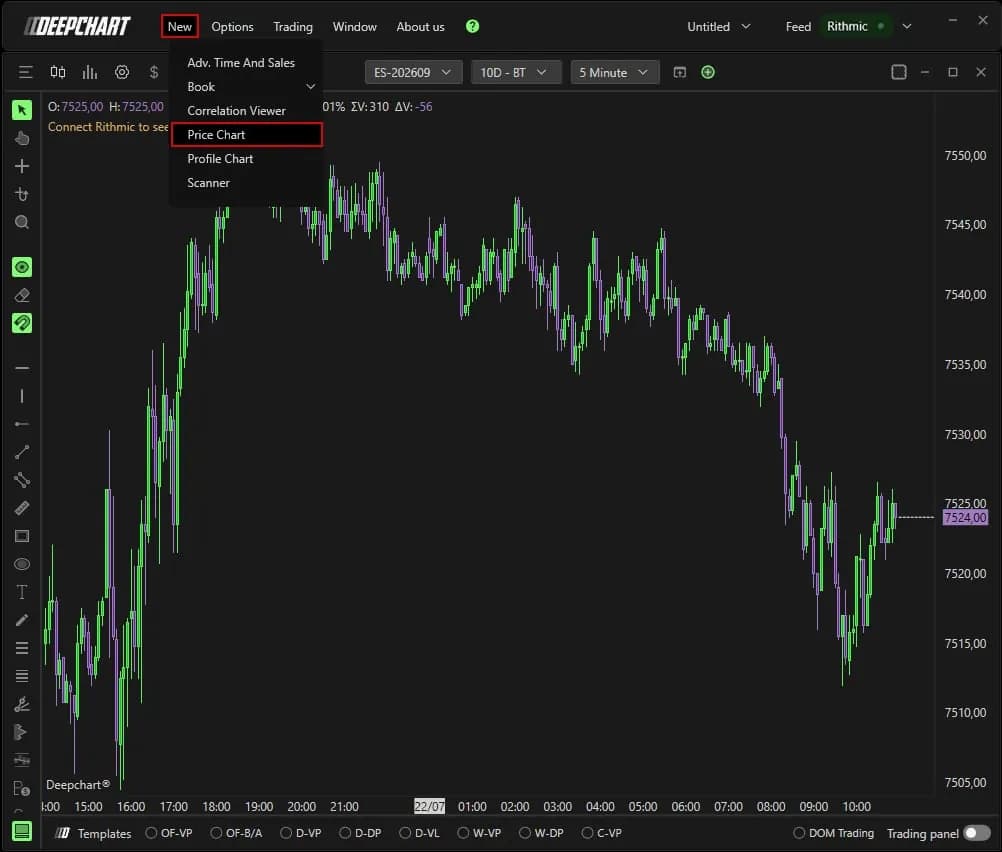
If CME is listed with another source, right-click the Data Feed cell, choose your new connection and confirm with Set. If it is missing, use Subscribe, find the exchange, assign the connection and Select. Then New, Price Chart, ES or NQ, OK: the chart loads live. A blank chart with a green light almost always means this mapping is wrong.
Connect DeepDom on the same feed
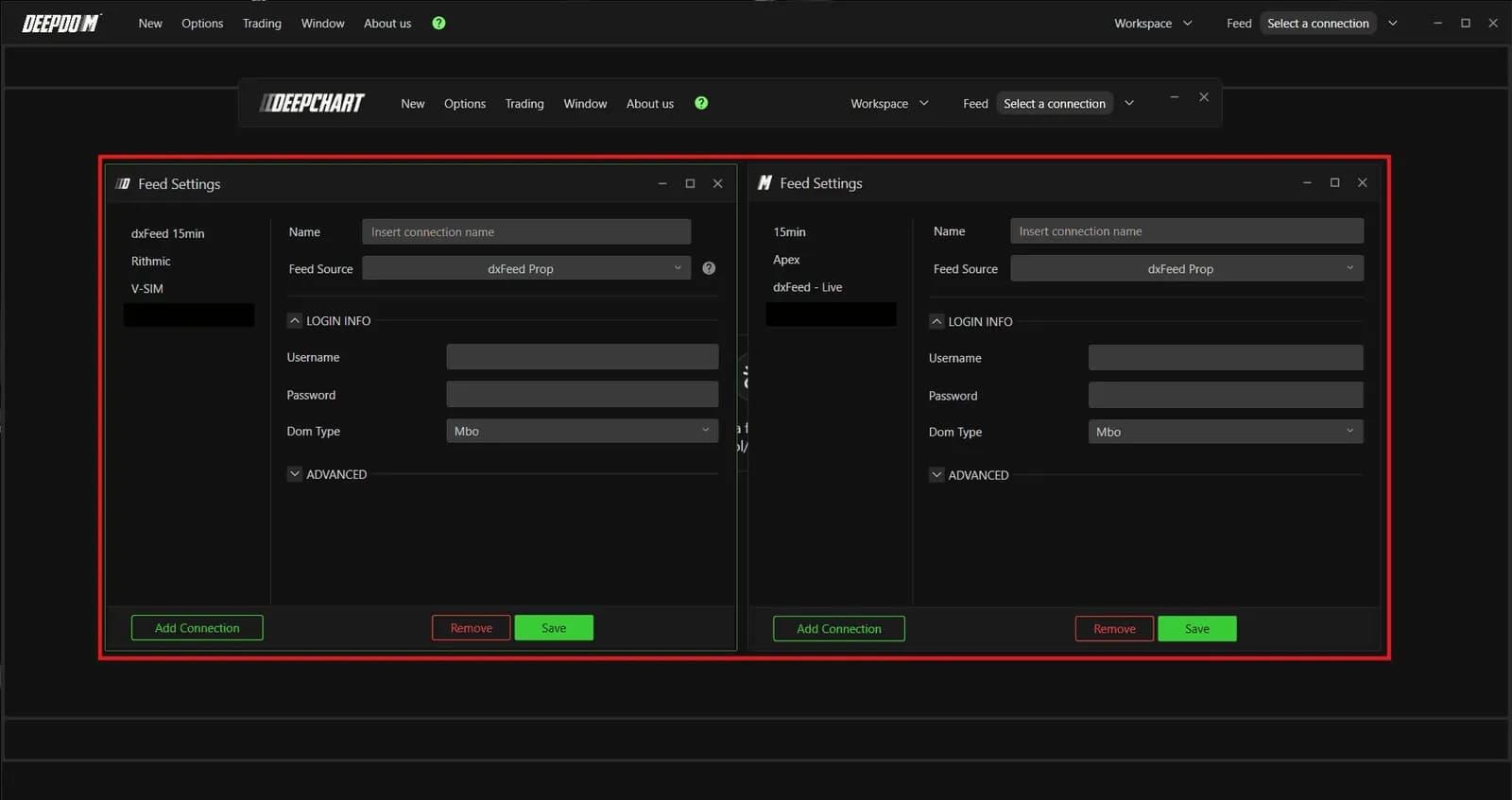
DeepDomOFF uses the same credentials as your charts, so there is nothing new to request from the firm. Create the same connection type in its Feed Settings and match the details exactly.
On Rithmic, use the same Server and Gateway on both sides. On dxFeed, set Dom Type to Mbo in both platforms, as recommended. On CQG, check that your access includes Level 2 data, which DeepDomOFF needs; with Level 1 only, a dxFeed or Rithmic depth feed fills the gap. Both platforms then run side by side on one feed without conflict.
The settings to check first
When a connection refuses, the cause is nearly always one of a handful of settings, and checking them in order saves an evening.
| Setting | Default | What it changes |
|---|---|---|
| Feed Source | Picked by you | Rithmic RAPI, dxFeed Prop or CQG: the prop dxFeed entry is the only one that accepts firm credentials |
| Server (Rithmic) | Your firm's name | Rithmic Paper Trading if your firm is not listed, and always for Bulenox |
| Gateway (Rithmic) | Automatic | The platform picks the closest region |
| Connect only trading (Rithmic) | Off | Execution only, with no market data: charts stop loading |
| Dom Type (dxFeed) | Mbo | Mbp lightens the feed on a slower line |
| Use demo credential (CQG) | Off | On only for CQG demo credentials |
| Connection portfolio mode | Native | Positions read from the broker, matching your statement |
Once the account is live, the next step is to put the firm's limits on your own screen: our Risk Manager setup guide sets them one notch tighter than the firm's.
Firms that run DeepCharts